
Your first Sitioo store does not need to be complicated. Start with the site identity, build one clear Index page, add only the widgets you need, and test the result on desktop, tablet, and mobile before you prepare it for publication.
1. Create the site and choose its address
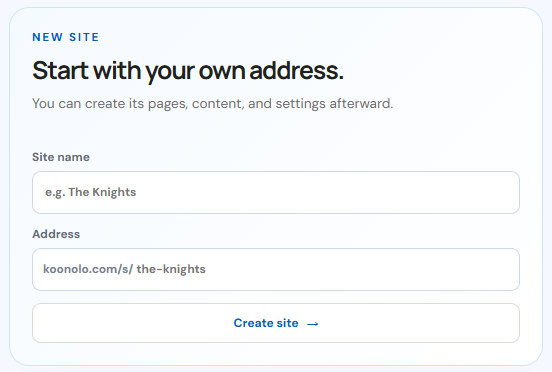
From the new-site screen, enter the store name and choose the address you want to use. Keep the address short, readable, and closely related to the store name because it becomes part of the public Sitioo URL.
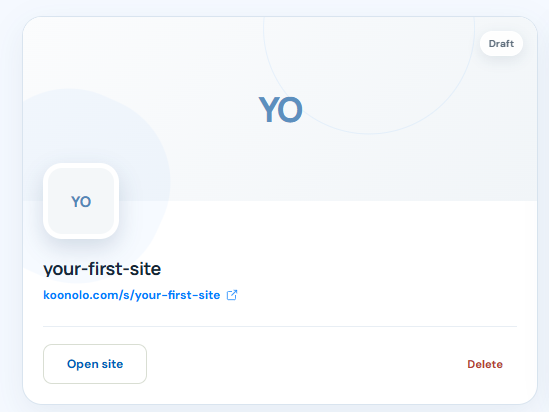
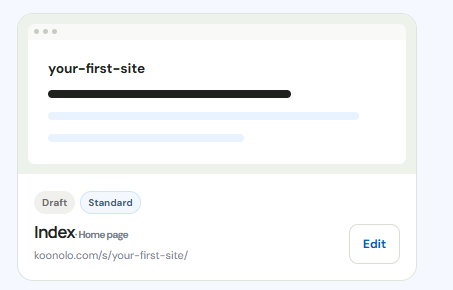
After creation, the store appears as a site card. Open it to continue with the identity, images, pages, and builder.
2. Complete the store identity
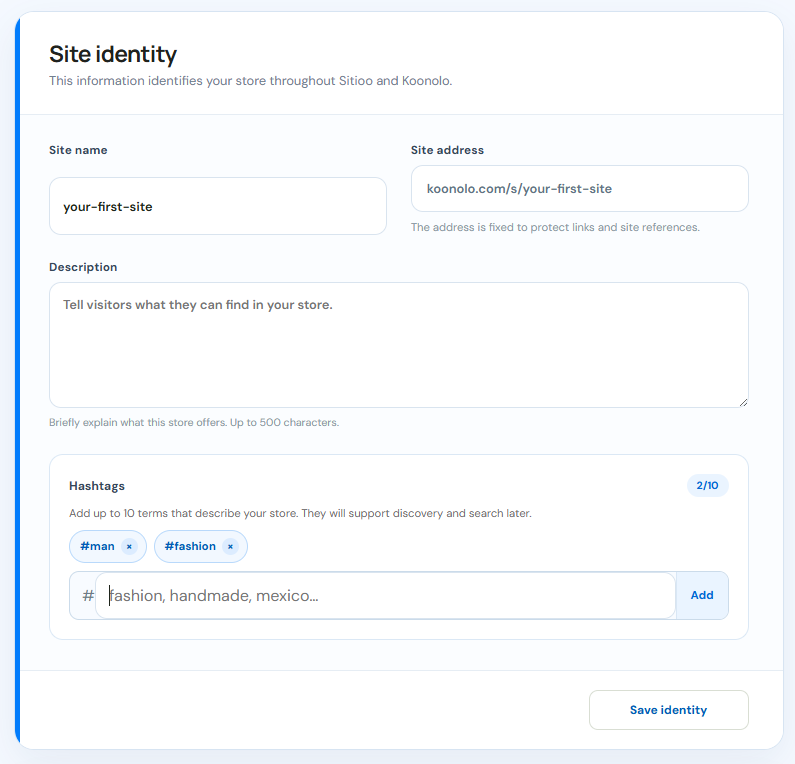
Add a useful site description and focused hashtags. The description should quickly explain what customers can find in the store. Hashtags should describe the products, style, audience, or niche instead of repeating generic words.
3. Upload the favicon and store banner
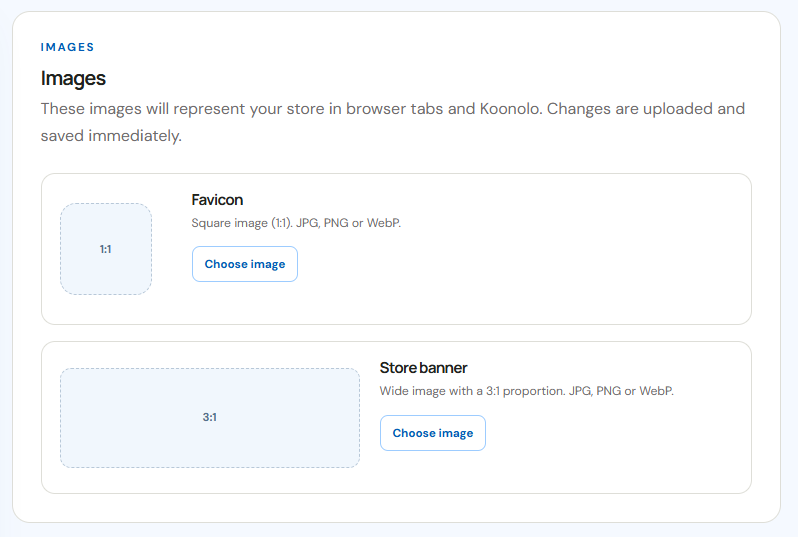
Upload a square favicon for browser tabs and a wide store banner for visual identity. Use clean images that remain understandable at small sizes, and keep the most important branding away from the extreme edges of the banner.
4. Open the Index page
The Index page is the home page of the store. Open it in the page builder and treat it as the place where a new visitor should immediately understand the brand, the main offer, and where to go next.
5. Learn the page builder layout
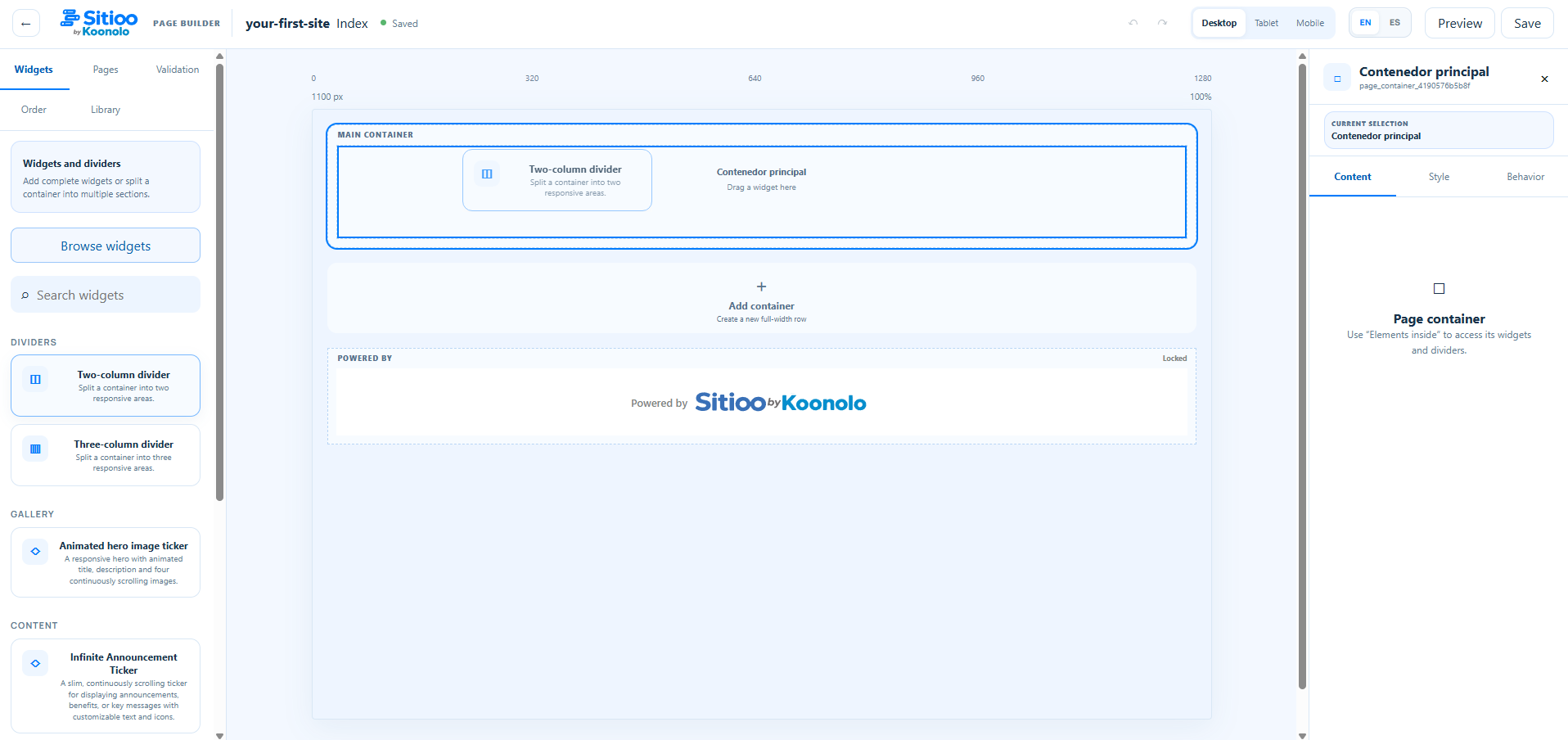
The builder is divided into a widget area, the page canvas, and the editing panel. Add containers when you need a new row, use dividers when you need multiple responsive areas, and place complete widgets inside those areas.
Choose widgets and dividers
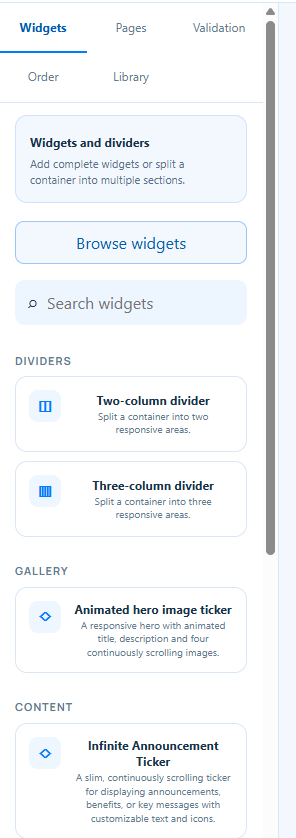
Use dividers to organize layout and browse the available widgets by category. Start with the few pieces a customer needs most, such as navigation, a hero, featured content, products, benefits, and a clear call to action.
Reuse images from the site library
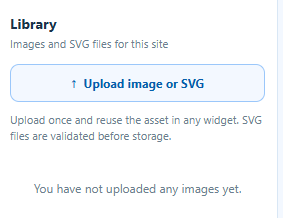
Upload store images and SVG assets to the site library so they can be reused across widgets. Keeping assets in one place makes the page easier to maintain and avoids repeatedly uploading the same files.
6. Add navigation and edit only what the widget exposes
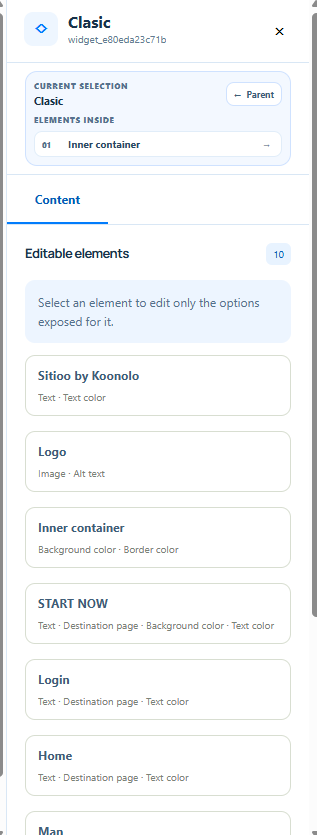
A navigation widget gives visitors an obvious way to move through the store. When you select the widget, edit the exposed text, destinations, colors, images, and other allowed fields from the sidebar rather than rebuilding the widget itself.

7. Test desktop, tablet, and mobile
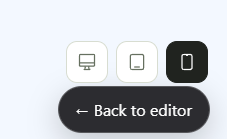
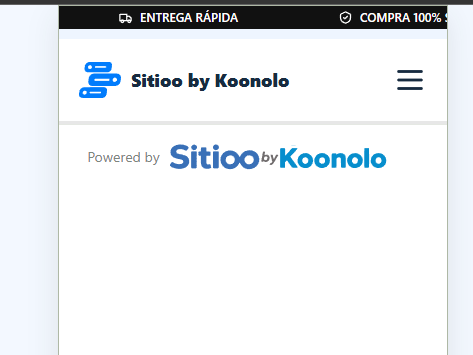
A store page is not finished when it looks good only on desktop. Switch between device previews and check spacing, text size, navigation behavior, tap targets, image cropping, and whether the most important action remains visible.
8. Prepare the page for publication
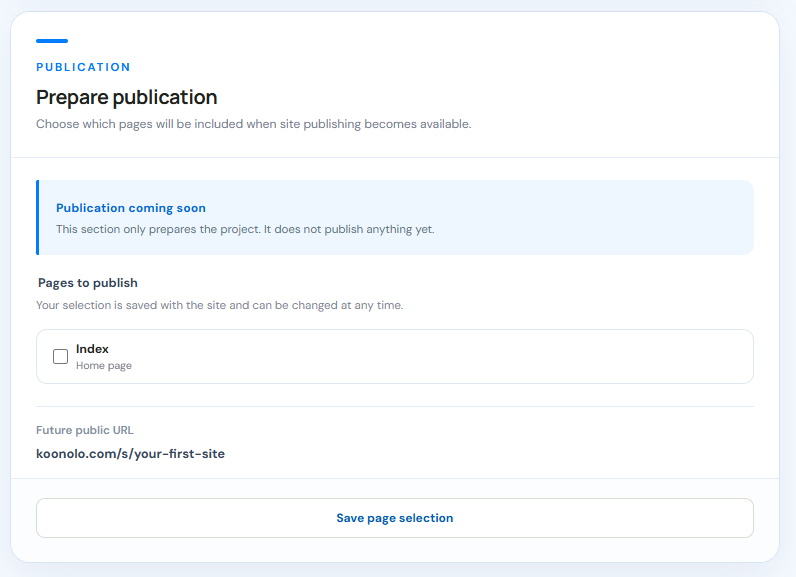
When the Index page is ready, review the publication section and select the pages that should be included. Before publishing, make one final pass through the store as if you were a customer and confirm that every important destination works.
- The store name, description, and address are correct.
- The favicon and banner are uploaded.
- The Index page explains what the store sells within the first screen.
- Navigation destinations are clear and working.
- Images have useful alternative text where needed.
- The page has been checked on desktop, tablet, and mobile.
- The main call to action is easy to find.
- Only the intended pages are selected for publication.
Your first Sitioo page is ready when a new visitor can understand the store, navigate it, and know what to do next without needing an explanation.
Sitioo