
Sitioo lets you use an AI to help build your first widget without writing the widget structure manually. The basic flow is simple: open Create with AI, give the AI the official widget specification and a description of what you want, ask for the JSON result, then import that JSON into Widget Studio.
1. Open Create with AI
Inside Widget Studio, click the Create with AI button to open the assisted workflow.
2. Give the AI the Sitioo widget specification
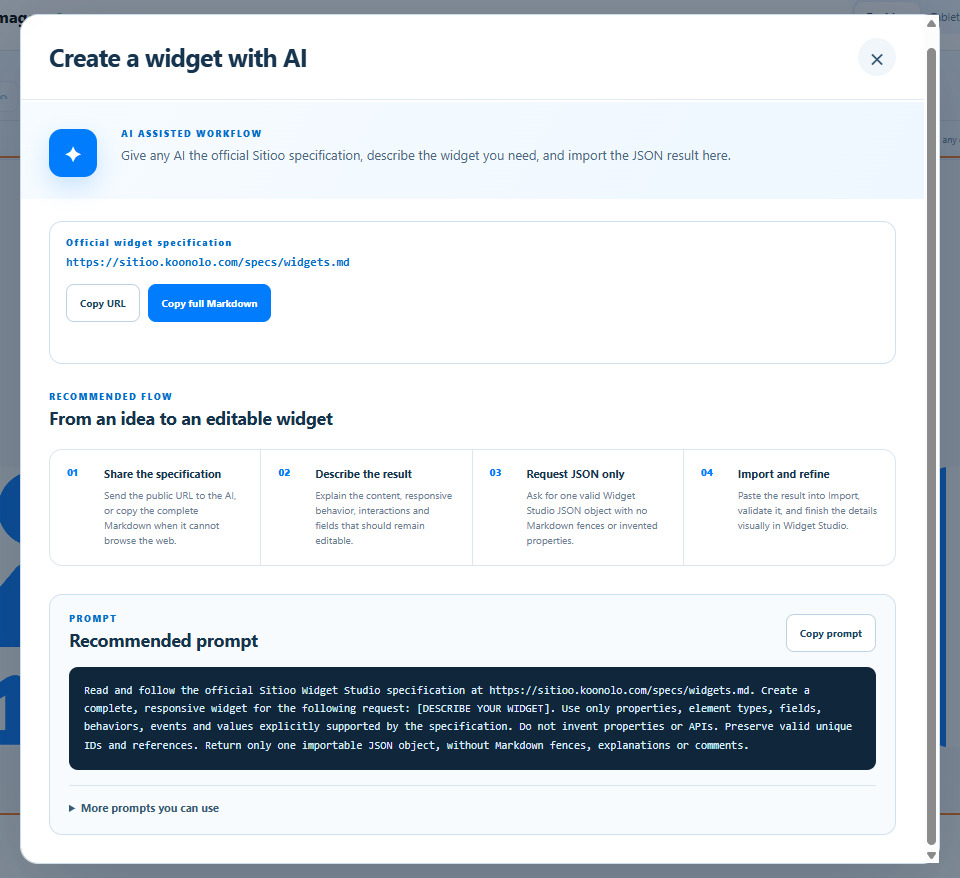
The AI workflow shows the official widget specification and gives you options to copy the URL, copy the full Markdown, or copy the recommended prompt. Use one of those options so the AI can follow the Sitioo widget format.
3. Describe the widget you want
Tell the AI what the widget should look like and how it should behave. You can describe the content, responsive behavior, fields, animations and interactions you want. Ask the AI to return the widget as JSON only so it can be imported.
4. Open Import
When the AI gives you the JSON, return to Widget Studio and click Import.
5. Paste the JSON and import it
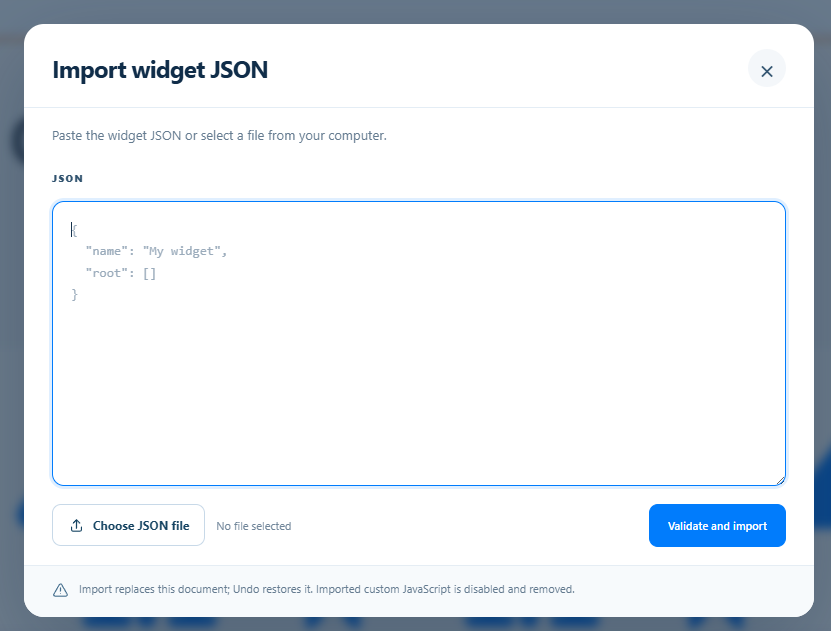
The Import widget JSON window lets you paste the generated JSON or choose a JSON file. Paste the result from the AI, then use Validate and import.
6. Continue editing your widget
After the import succeeds, the widget appears in Widget Studio and you can continue refining it visually. The generated widget can include the animations, interactions and other supported behavior you requested.
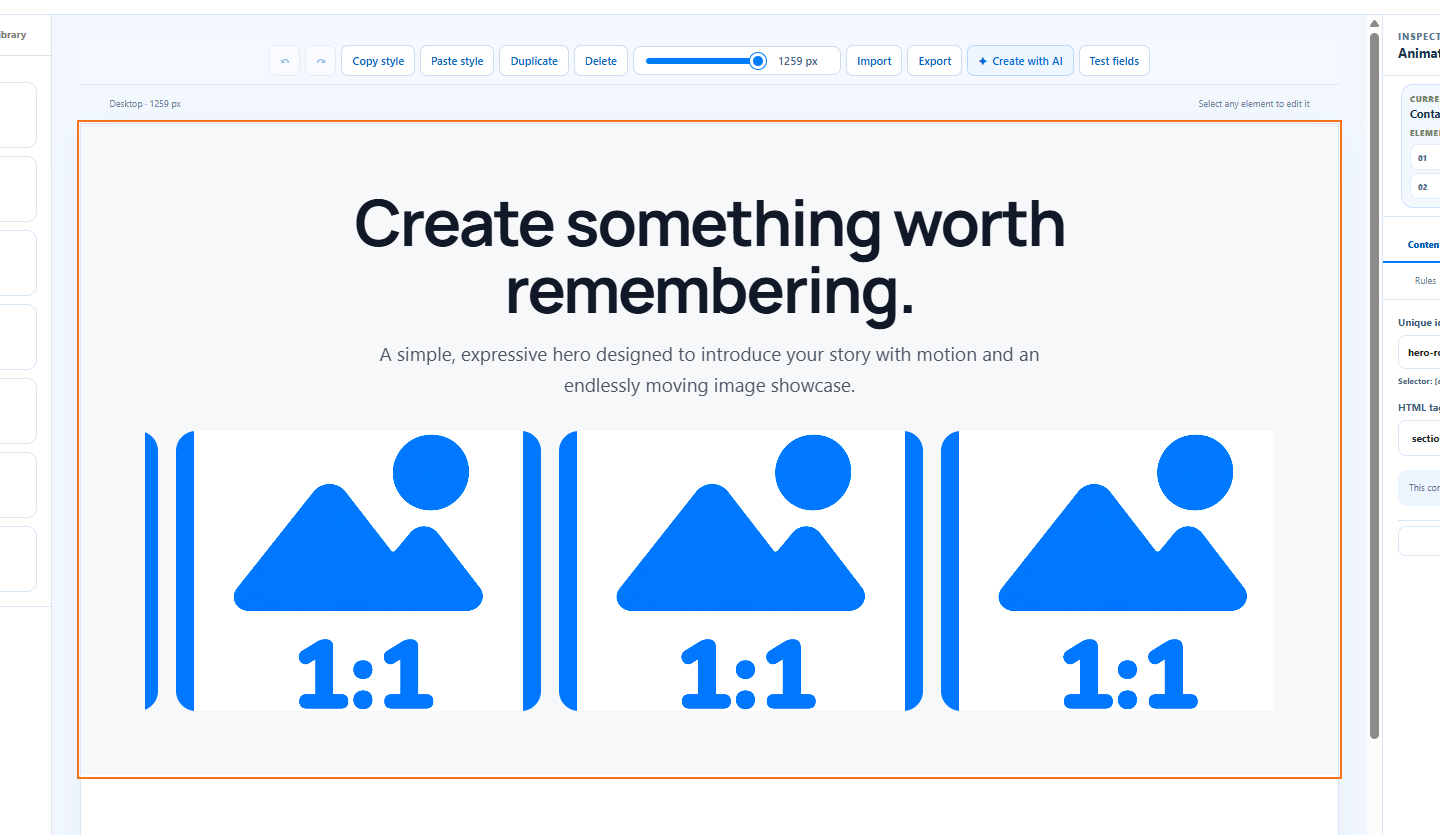
The complete flow
- Click Create with AI.
- Copy the official specification URL, full Markdown or recommended prompt.
- Tell the AI exactly what kind of widget you want.
- Ask for the widget JSON only.
- Click Import in Widget Studio.
- Paste the JSON and select Validate and import.
- Review the created widget and continue editing it.